S3: Access Denied When Accessing File
If you upload a file to S3, it becomes an object and is set to private by default on AWS. In this example I uploaded a JPG image to S3 using WinSCP (free of charge, Windows).
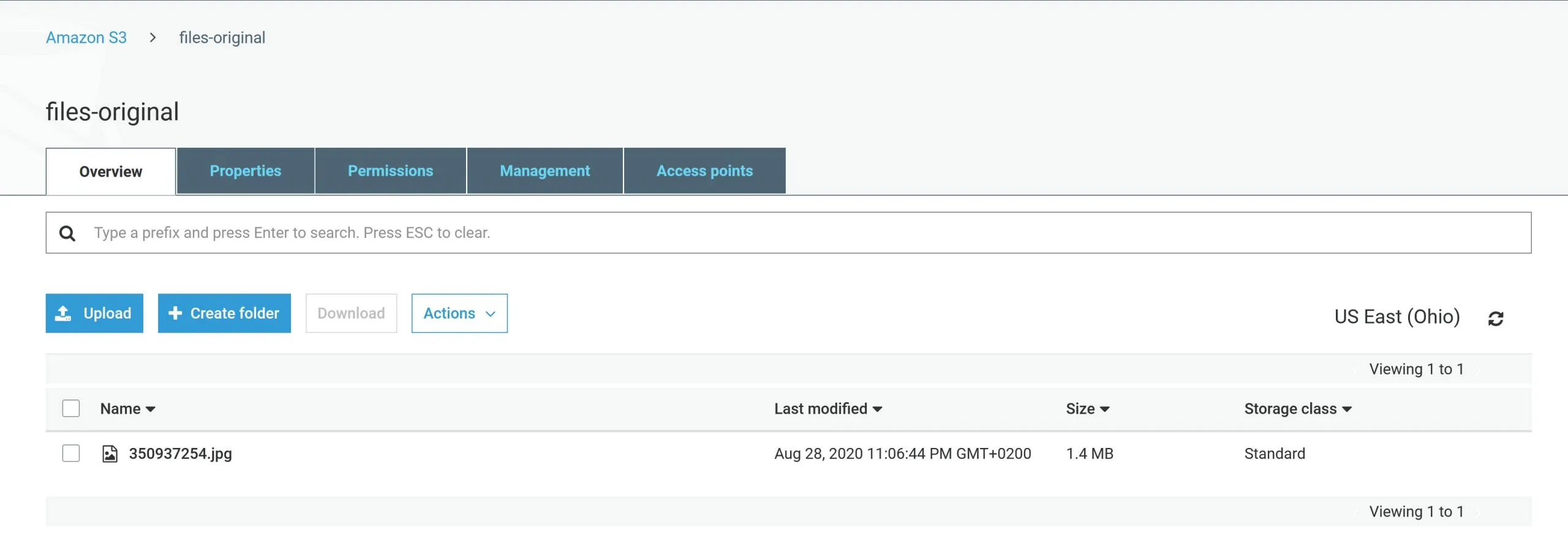
If you click on the object in S3, you see the information about it. If you then open the object’s URL in a new browser tab, you get an error message: “Access denied.”
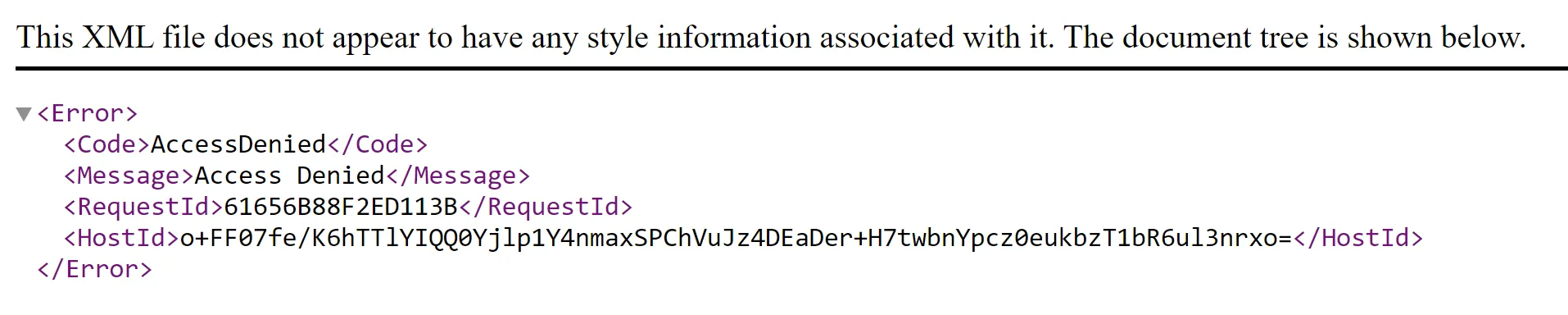
If you want to make a file publicly available on the Internet for everyone, you can do this relatively quickly with S3.
It’s easy: share your S3 file publicly
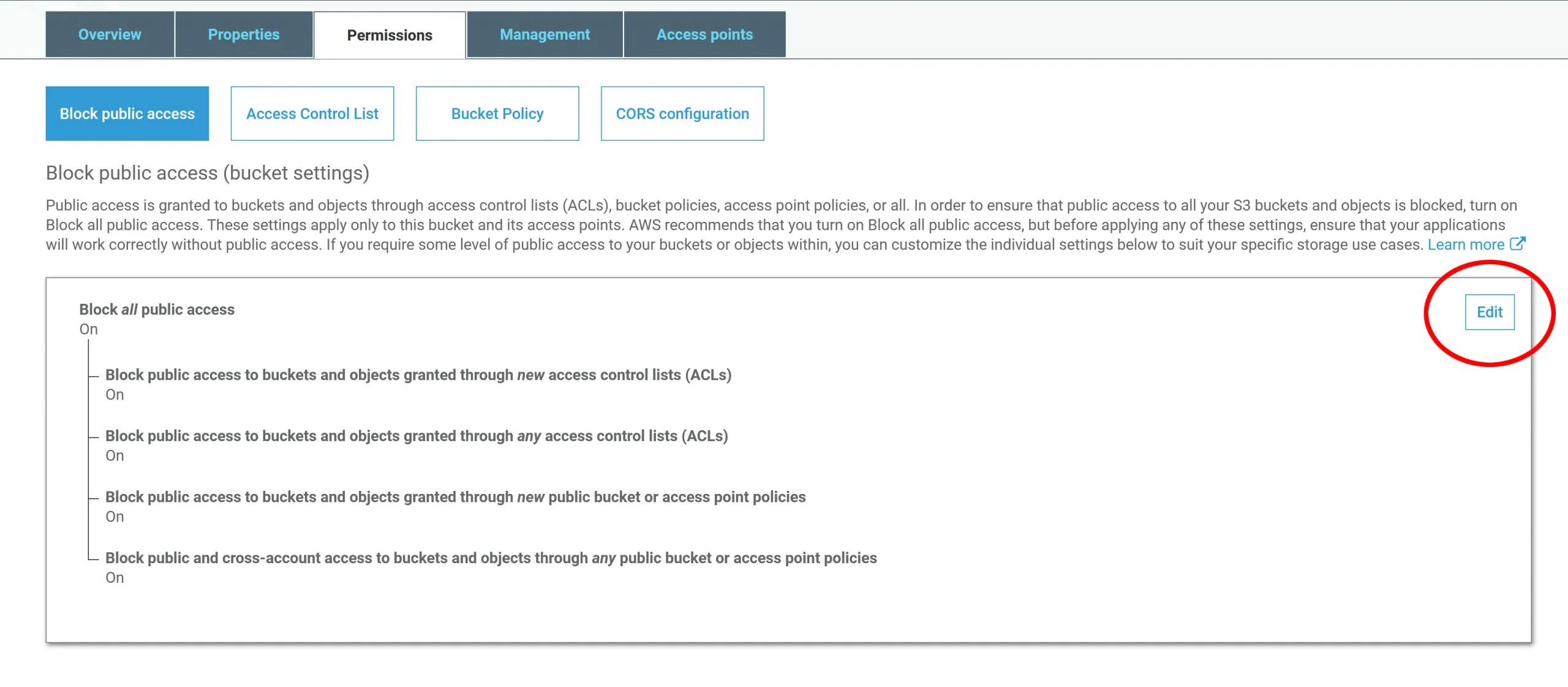
Step 1: Edit the public access settings of your bucket
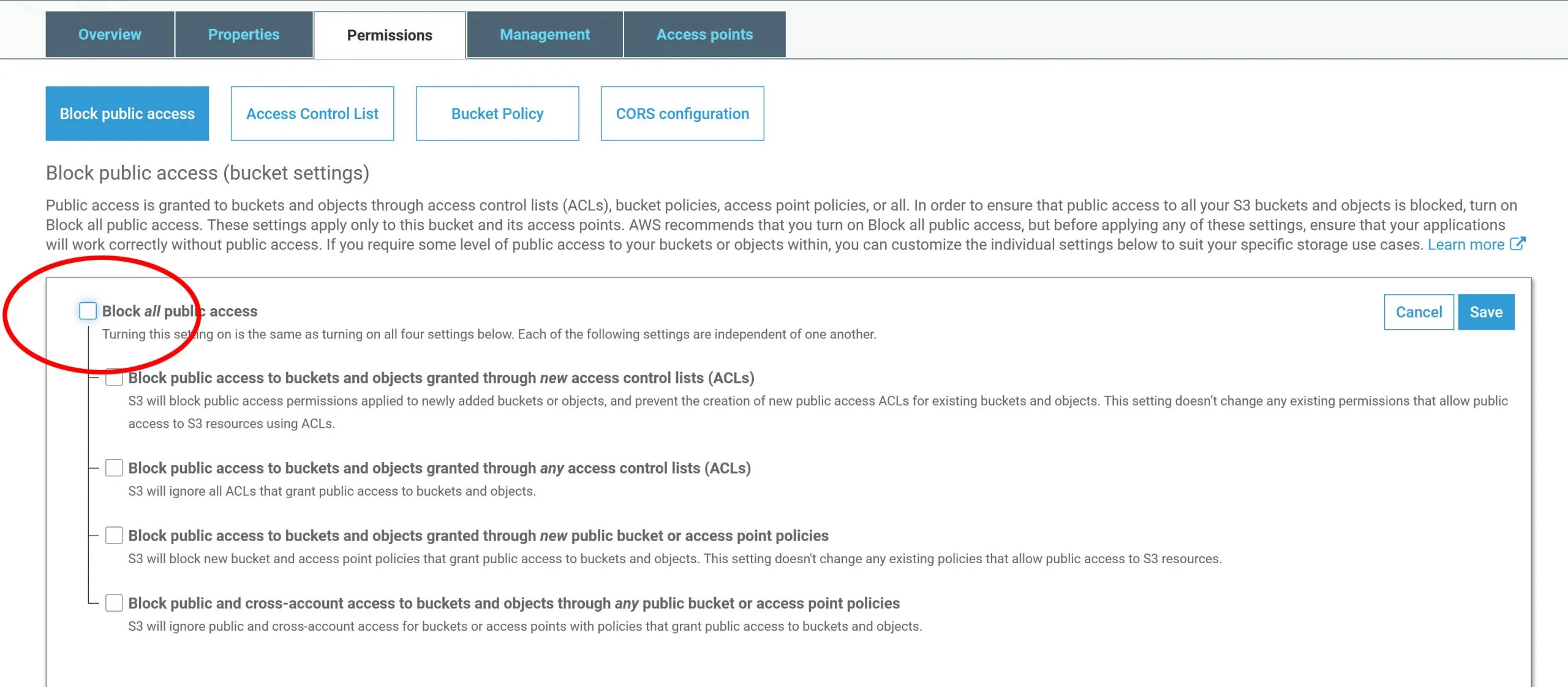
Step 2: Disable the option to block public access
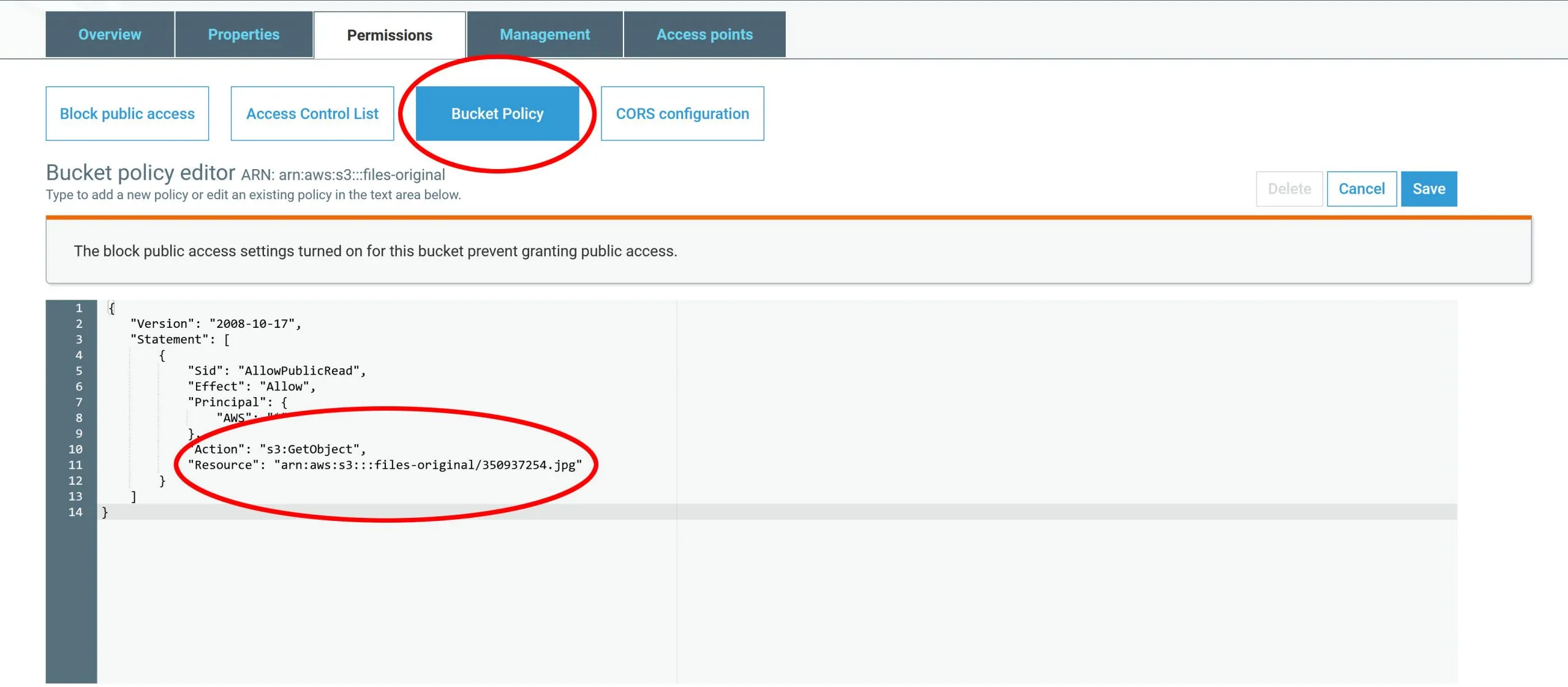
Step 3: Create a bucket policy (scroll down to copy the code)
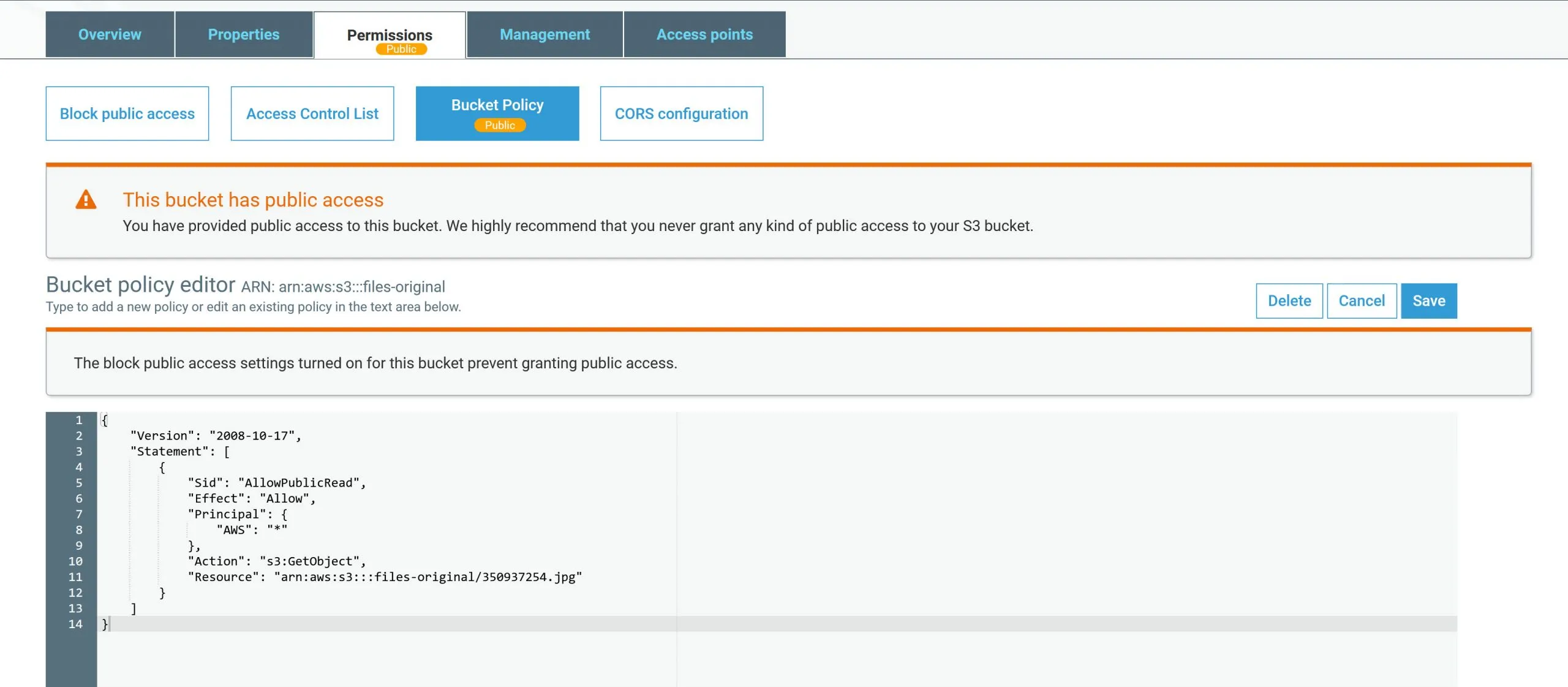
Step 4: Check your settings
If you want to share the entire bucket publicly on the Internet, you can replace the file name 350937254.jpg with an asterisk ”*”. The code required for step 3 is:
{ “Version”: “2008-10-17”, “Statement”: [{ “Sid”: “AllowPublicRead”, “Effect”: “Allow”, “Principal”: { “AWS”: ”*” }, “Action”: “s3:GetObject”, “Resource”: “arn:aws:s3:::files-original/350937254.jpg” } ] }
Searches this page answers
- S3 access denied
- S3 access denied error
- S3 access denied XML
- AWS S3 access denied
- AWS S3 access denied when open object URL in browser
- AWS S3 access denied on public bucket
- S3 access denied public bucket
- S3 make object public
- S3 public access bucket policy
- WinSCP S3